Vêtir for AI assistants
Vêtir, inside ChatGPT and Claude.
Vêtir’s MCP server brings the Vêtir shop, your digital closet and the Vêtir AI stylist into ChatGPT, Claude and other AI assistants. Search and build a bag in your own words; sign in when you want your closet and outfits. You always check out on Vêtir.
https://api.vetirapp.com/mcpAdd it once as a connector in your AI app — pasting it into a chat won’t connect it. No key, nothing to install.
Style my Saint Laurent Kate bag for dinner on Friday. Use my closet, and keep anything new under $6k.
Here’s a look around your Kate bag, with the Chloé earrings from your closet. The dress and mules are new and in stock in your sizes — $5,240 together.
 Shop
Shop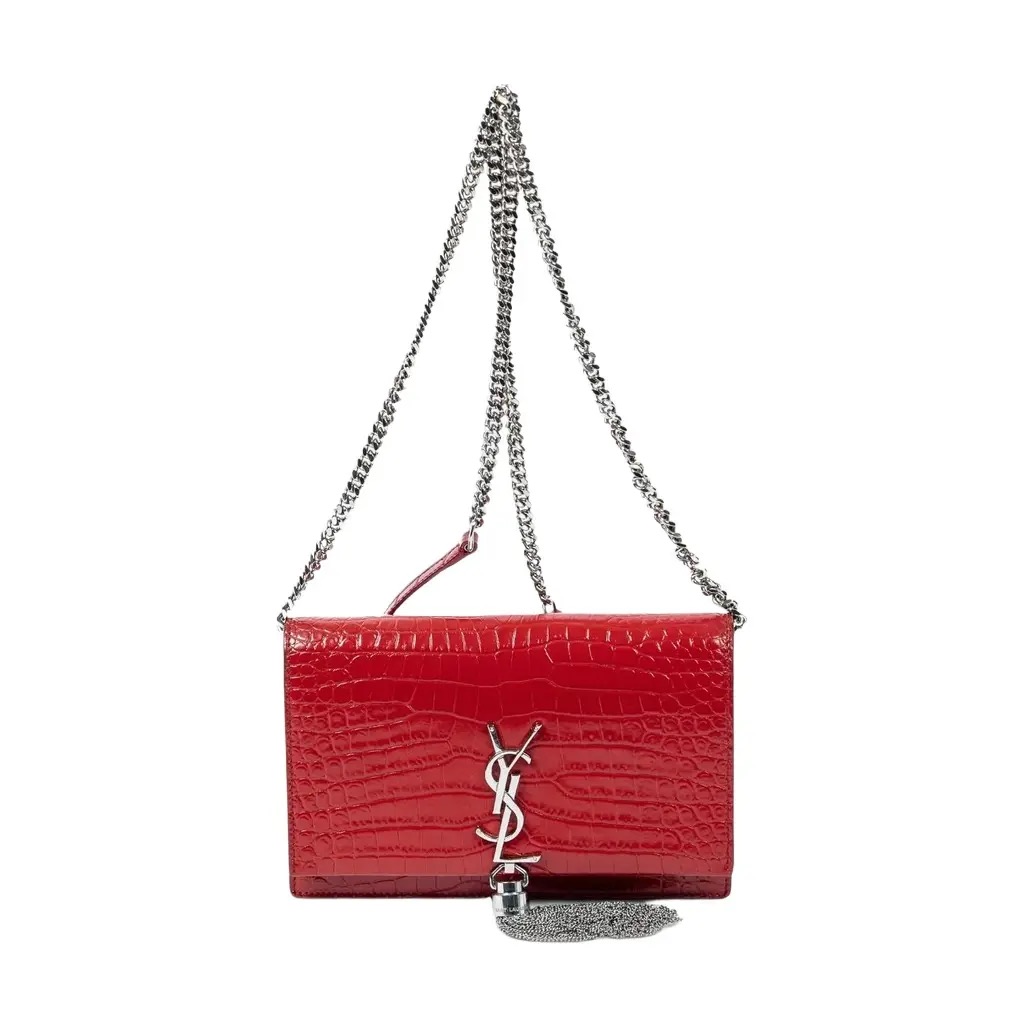 Your closet
 Shop
Shop Your closet
Vêtir for AI assistants, at a glance
Updated
- What it is
- Vêtir’s official MCP server: it lets AI assistants use Vêtir for you.
- MCP link
https://api.vetirapp.com/mcp- Works with
- ChatGPT, Claude (web, desktop, mobile), Claude Code, Cursor, VS Code, Codex, Gemini CLI and any MCP app
- Price
- Free
- Account
- Not needed to shop. Sign in (Google, Apple or an email code) for your closet, outfits, the AI stylist, favourites and orders.
- Checkout
- Always on vetirapp.com — assistants can’t place orders or charge cards.
- Your control
- Choose what an app may do (read-only if you like) and disconnect any time.
Your stylist, wherever you ask.
The same catalogue, closet and stylist as the Vêtir app — reached from the assistant you already talk to. It shows you pieces with their price and a link, builds complete looks, and leaves the decision, and the checkout, to you.
How it works
Ask first. Sign in only when it’s personal.
Add Vêtir
Add one link as a connector in ChatGPT, Claude or the AI app you use. No key, no download.
Ask
Search, trends, sizes, similar pieces and complete looks work straight away — no account needed.
Sign in when it’s personal
Ask about your closet or the stylist and the app asks you to sign in to Vêtir, the way you always do.
Check out on Vêtir
The assistant builds your bag and hands you a link. You check it and pay on Vêtir.
What it can do
What ChatGPT and Claude can do with Vêtir.
Open to everyone
No account needed
With your Vêtir account
Sign in when it asks
Google, Apple or an email code — the same sign-in as vetirapp.com.
Try asking
Say it the way you’d say it to a stylist.
Set it up
Add Vêtir to ChatGPT, Claude or any AI app in two minutes.
Pick your app and add the link once as a connector — pasting it into a chat won’t connect it. Every app uses the same link, and each asks you to sign in to Vêtir only when a request needs your account.
Add Vêtir to ChatGPT
chatgpt.com- In ChatGPT on the web, open Settings → Security and login and turn on Developer mode.
- Open Plugins and choose +. Name it Vêtir, paste the MCP link, and set authentication to Mixed. Choose Create.
- Ask away: search and trends work straight away. The first time you ask about your closet or the stylist, ChatGPT asks you to connect — sign in to Vêtir and choose Allow.
https://api.vetirapp.com/mcpDeveloper mode is available on Plus, Pro, Business, Enterprise and Edu plans.
Add Vêtir to Claude
claude.ai, desktop and mobile- Open Customize → Connectors, choose + and then Add custom connector.
- Name it Vêtir and paste the MCP link. For authentication choose Sign in when needed (OAuth client: Use Claude’s published identity), then Add.
- Search and browse straight away. When you ask about your closet, Claude shows Connect — sign in to Vêtir and choose Allow.
https://api.vetirapp.com/mcpOn Team and Enterprise plans an owner may need to add the connector for your organisation first.
Add Vêtir to Claude Code
terminal- Run this once in a terminal. It adds Vêtir for all your projects.
- Search works straight away. To use your closet and the stylist, run /mcp in Claude Code, pick vetir and choose Authenticate (or run
claude mcp login vetir).
claude mcp add --transport http --scope user vetir https://api.vetirapp.com/mcpAdd Vêtir to Cursor
desktop- Use Add to Cursor, or add this to
~/.cursor/mcp.jsonand reload. - The first time you use your closet or the stylist, Cursor asks you to sign in to Vêtir.
{
  "mcpServers": {
    "vetir": {
      "url": "https://api.vetirapp.com/mcp"
    }
  }
}
Add Vêtir to VS Code
Copilot agent mode- Use Add to VS Code, or run MCP: Open User Configuration and add this server.
- Start it from the MCP view. VS Code asks you to sign in to Vêtir when a tool needs your account.
{
  "servers": {
    "vetir": {
      "type": "http",
      "url": "https://api.vetirapp.com/mcp"
    }
  }
}
Add Vêtir to Codex
CLI, IDE and app- Add this to
~/.codex/config.toml. - Run
codex mcp login vetirto sign in to Vêtir for your closet and the stylist.
[mcp_servers.vetir]
url = "https://api.vetirapp.com/mcp"
Add Vêtir to Gemini CLI
terminal- Add this to
~/.gemini/settings.json. - In Gemini CLI, run
/mcp auth vetirto sign in to Vêtir.
{
  "mcpServers": {
    "vetir": {
      "httpUrl": "https://api.vetirapp.com/mcp"
    }
  }
}
Add Vêtir to any other MCP app
any MCP app- Any app that supports MCP over Streamable HTTP can connect with the MCP link — no key needed.
- Apps that support MCP sign-in (OAuth) ask you to sign in to Vêtir the first time you use a personal tool.
https://api.vetirapp.com/mcpYour account stays yours
An assistant can suggest. You decide.
Questions
Vêtir in ChatGPT and Claude: good to know
Can I use Vêtir in ChatGPT?
Yes. Add Vêtir to ChatGPT once: Settings → Security and login → turn on Developer mode, then Plugins → + with the link https://api.vetirapp.com/mcp and authentication set to Mixed. Then ask ChatGPT to search Vêtir, show what’s trending or style you from your closet.
Does Vêtir work with Claude?
Yes — on claude.ai, the Claude desktop and mobile apps, and Claude Code. In Claude, open Customize → Connectors → Add custom connector, paste https://api.vetirapp.com/mcp and choose “Sign in when needed”. In Claude Code, run: claude mcp add --transport http --scope user vetir https://api.vetirapp.com/mcp
What is the Vêtir MCP server link?
https://api.vetirapp.com/mcp — an MCP server (Streamable HTTP) for ChatGPT, Claude, Claude Code, Cursor, VS Code, Codex, Gemini CLI and any other MCP app. Add it in your app’s connector or MCP settings; pasting it into a chat message does not connect it.
Why does my assistant say it can’t connect to the link?
Because the link was pasted into a chat. An assistant can only use Vêtir after the link is added as a connector (ChatGPT: Plugins; Claude: Connectors; Claude Code: claude mcp add). Add it once using the steps on this page, then ask again.
Do I need a Vêtir account?
Not to shop. Searching, trends, product details, similar pieces and a ready bag work without one. Your closet, outfits, the AI stylist, favourites and orders need you to sign in — Google, Apple or an email code, the same as on vetirapp.com.
Can the AI stylist use my closet in ChatGPT or Claude?
Yes, once you sign in to Vêtir from the assistant. The Vêtir AI stylist then builds complete looks from the pieces in your digital closet and the Vêtir shop, and can plan your outfits for the week.
Can the assistant buy things for me?
No. It can put pieces in a bag and give you a link. You open the link on Vêtir, check the sizes and pay there, like any other order. No assistant can place an order or use your saved cards.
Is it free?
Yes. Connecting an AI assistant to Vêtir is free, with or without a Vêtir account. You pay only for what you choose to buy on vetirapp.com.
What can it see?
Only what you allow when you connect, and you can choose read-only. It never sees your password, your saved cards or your addresses.
How do I disconnect an app?
Sign in on this page and use Disconnect under “Connected apps”, or remove Vêtir in the app’s own settings. A disconnected app loses access immediately.
What happens to what I say in the chat?
The conversation belongs to the app you use and follows its privacy policy. Vêtir only receives what a tool call asks for, and only answers with what that tool returns.
One link
Ask your assistant for anything you’d wear.
https://api.vetirapp.com/mcpFor AI models and developers: the full guide is at www.vetirapp.com/mcp.md.