Digitize Your Closet From Just a Video: How Vêtir Turns One Clip Into Separate Pieces
The quickest way to digitize your closet with Vêtir, a rail at a time, is to film it. Open your closet, choose Multi-Item Upload and pick a video of up to two minutes: a slow pan along a rail, a stack of knits on the bed, or a try-on haul where you hold each piece up to the camera. A photo that shows several pieces works the same way. Vêtir finds the pieces in it and shows you the list, you untick anything you don't want, and each piece you keep is cut out on a clean background and filed by category and colour, with the designer where it can be read, while you get on with your day.
Below: the steps, how to film for a clean result, a look under the hood at how the pipeline and its background job are built, the other ways into this digital closet app, and what to do once your wardrobe is in.
How to digitize your closet with Vêtir, step by step
- Open your closet in the Vêtir app or at vetirapp.com/closets and choose Add to Closet.
- Pick Multi-Item Upload. Take or choose a photo, or choose a video of up to two minutes (record it with your phone's camera first).
- Check what Vêtir found. The Curating Your Look screen shows a grid of the separate pieces, each labelled with its category and already selected. Untick anything that should not go in, such as the jeans you happened to be wearing.
- Confirm. The rest runs in the background. A card on your closet page shows how many items are uploading, with a Cancel button.
- Review. When the card says your items are in, tap Review Details to change the designer, colour, material, size or price of each piece, add tags, a note or a list, move it to another closet, and choose whether it is private.
How to film your closet so every piece comes through
Adding clothes to your closet from a video works best when the camera sees each piece clearly and for long enough.
- Hold each piece up for a few seconds, away from your body. Face it to the camera, pause, then move on. A piece that flashes past the lens can fall between the frames that get read, and one pressed flat against your own top can read as part of your outfit.
- Show each piece whole at least once. Its closet photo comes from the clearest complete view in the clip; if all the camera saw was a close-up of the collar, that close-up is all there is to work from.
- Fill the frame, and film alone. Stand close enough to take up most of the frame's height, or film the rail at arm's length. When two people share a frame, only the clothes of whoever is most prominent are read, so keep a helper behind the camera.
- Work one category at a time. Two minutes covers a shelf, not a wardrobe. Film the knitwear, then the denim, then the shoes, as separate uploads, and each review grid stays short.
- Space out look-alikes. Two black sweaters held up back to back can be read as one piece, and in a try-on clip two bags of one colour can be read as one wherever they appear. Show look-alike clothes far apart, one near the start and one near the end, and give each bag its own photo.
- Use flat-lays and rails. Lay pieces on a bed with space around each one, or pan slowly along the hangers. Nobody needs to be in shot.
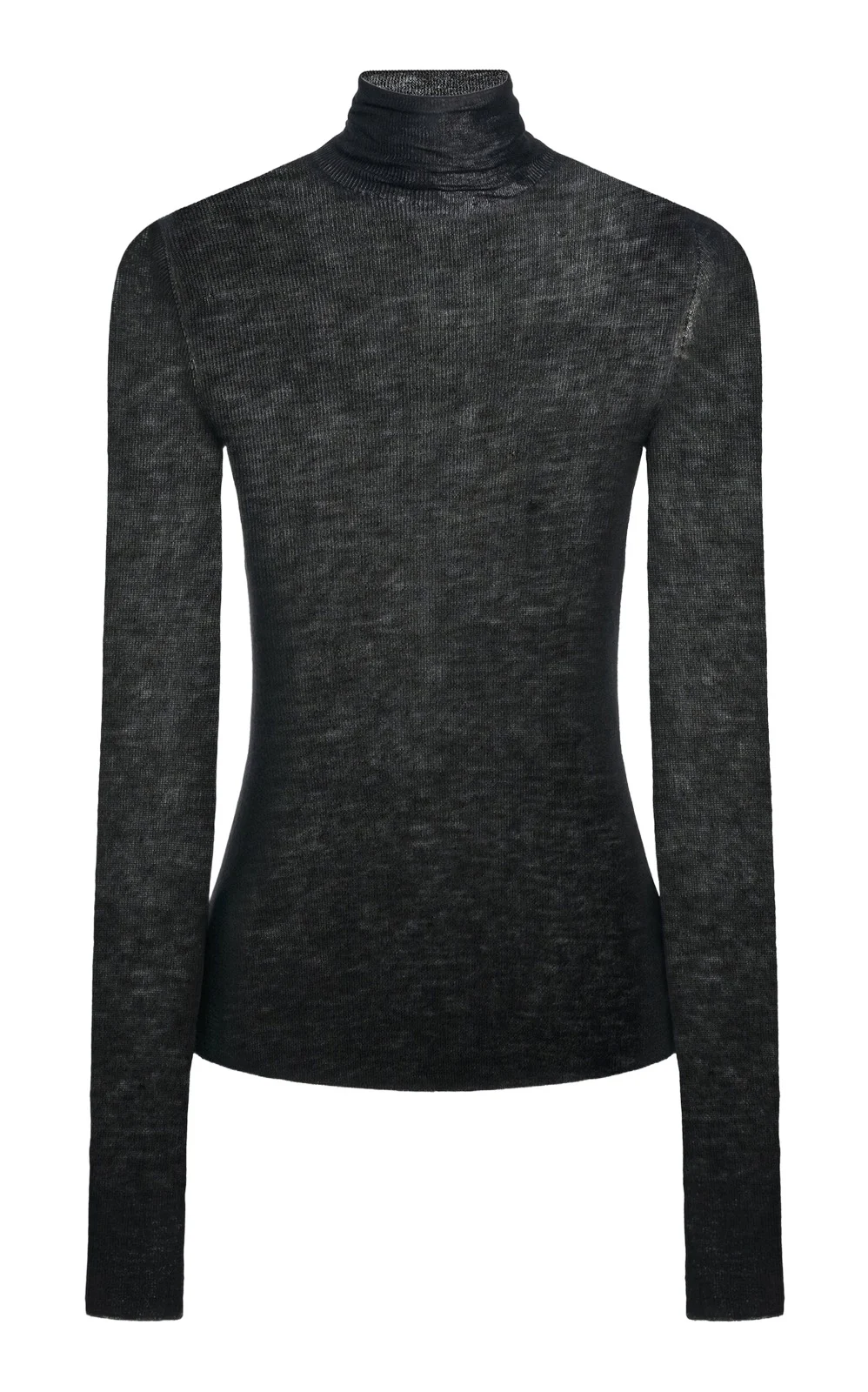
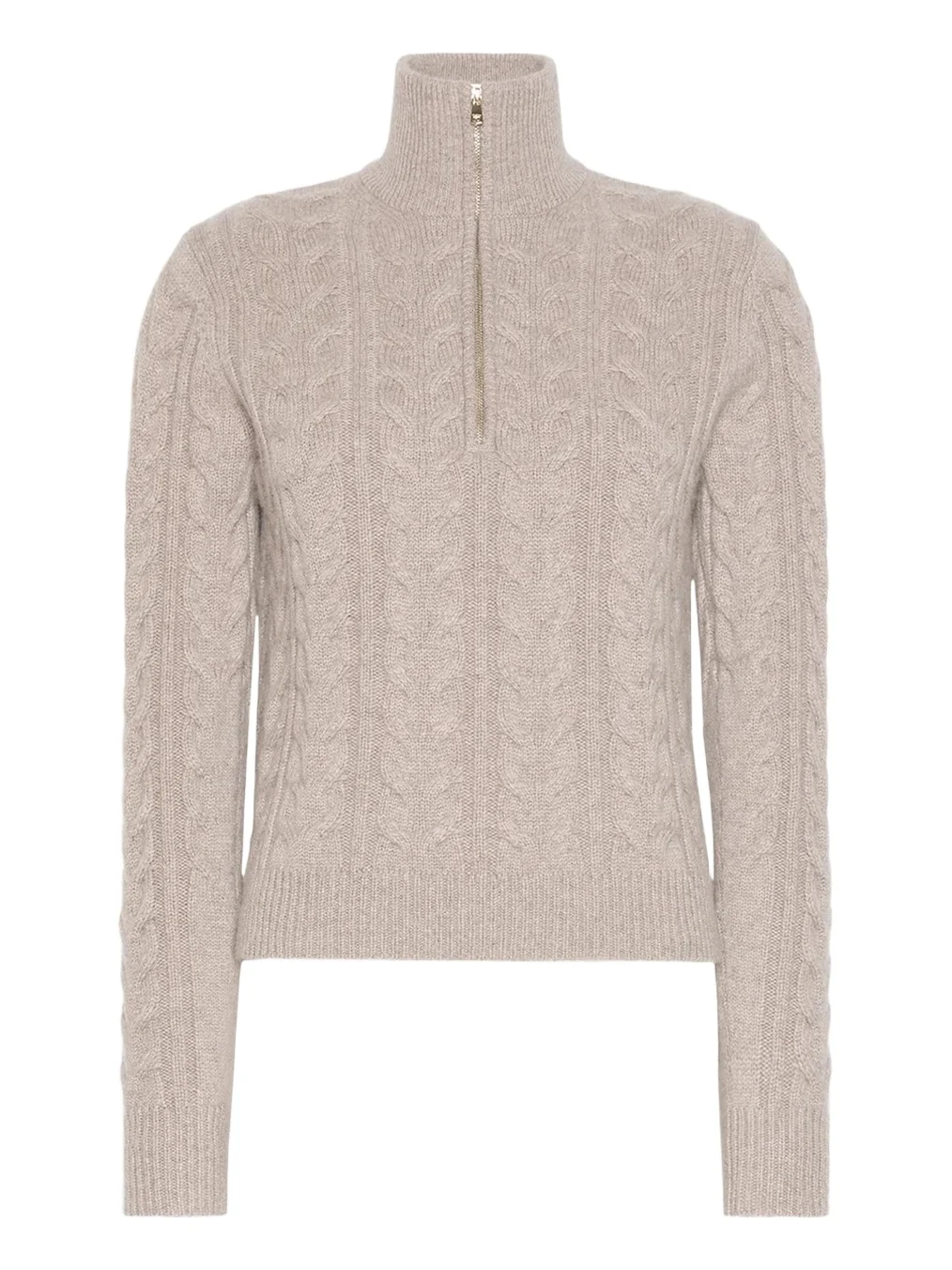
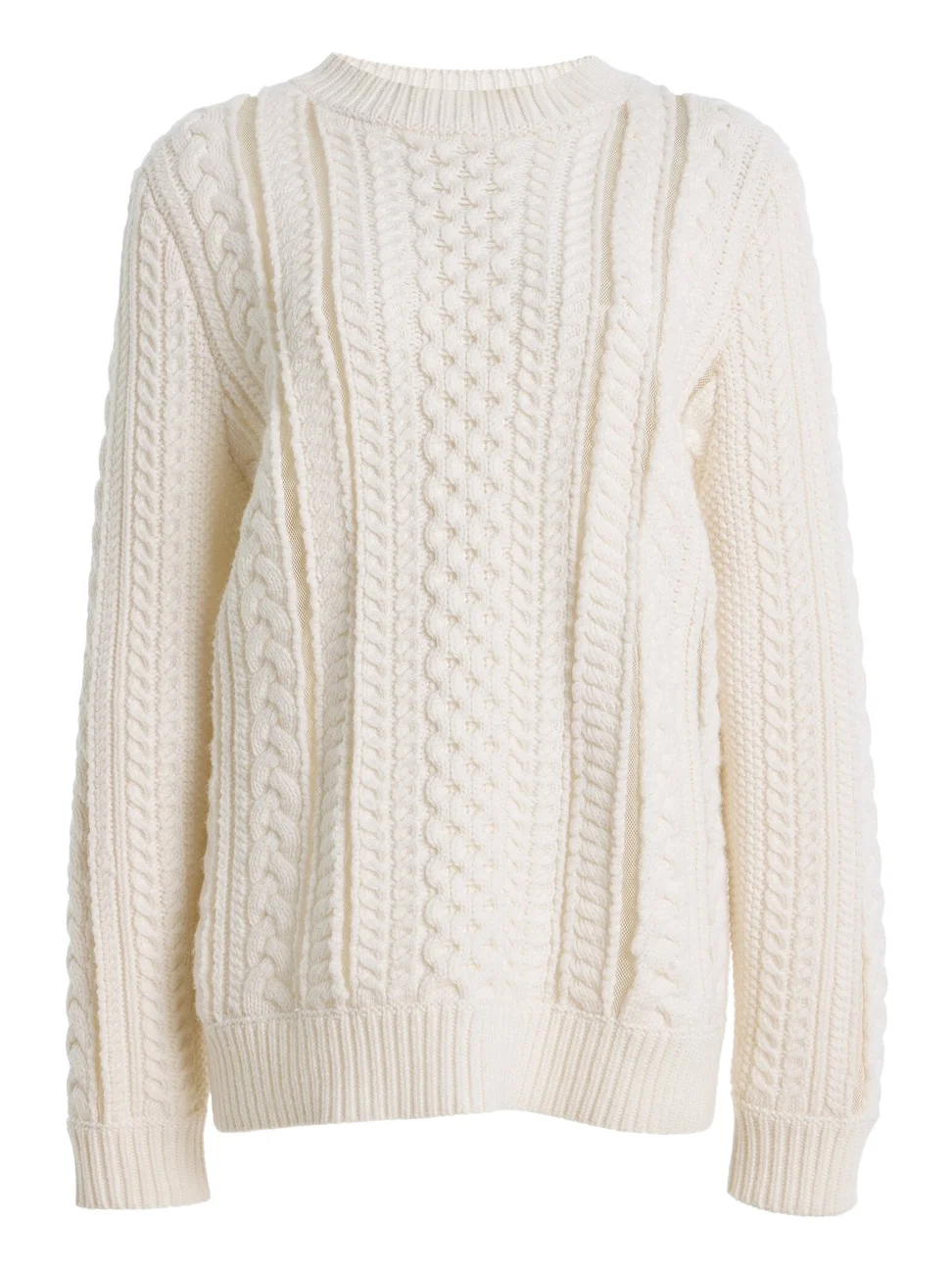
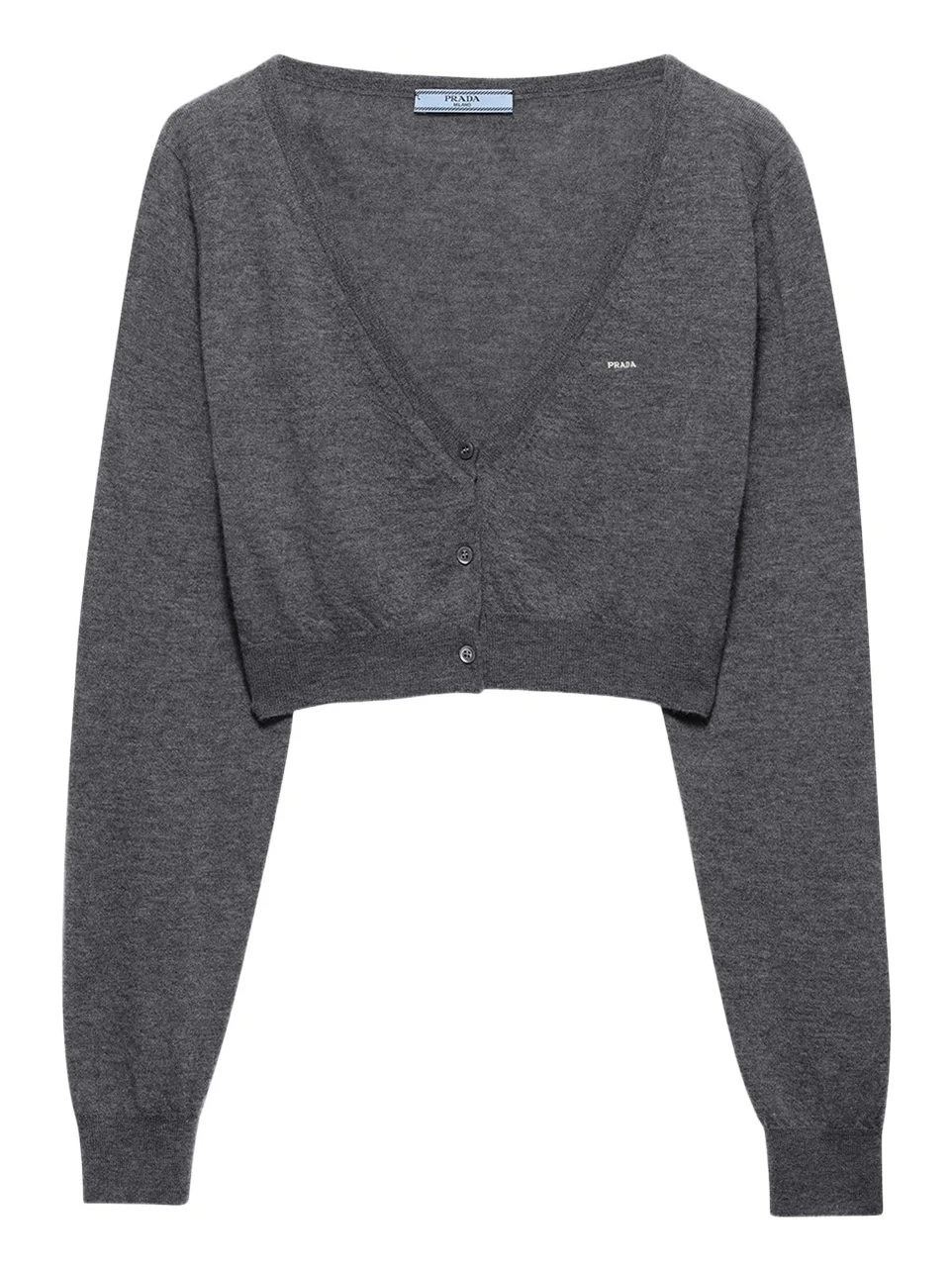
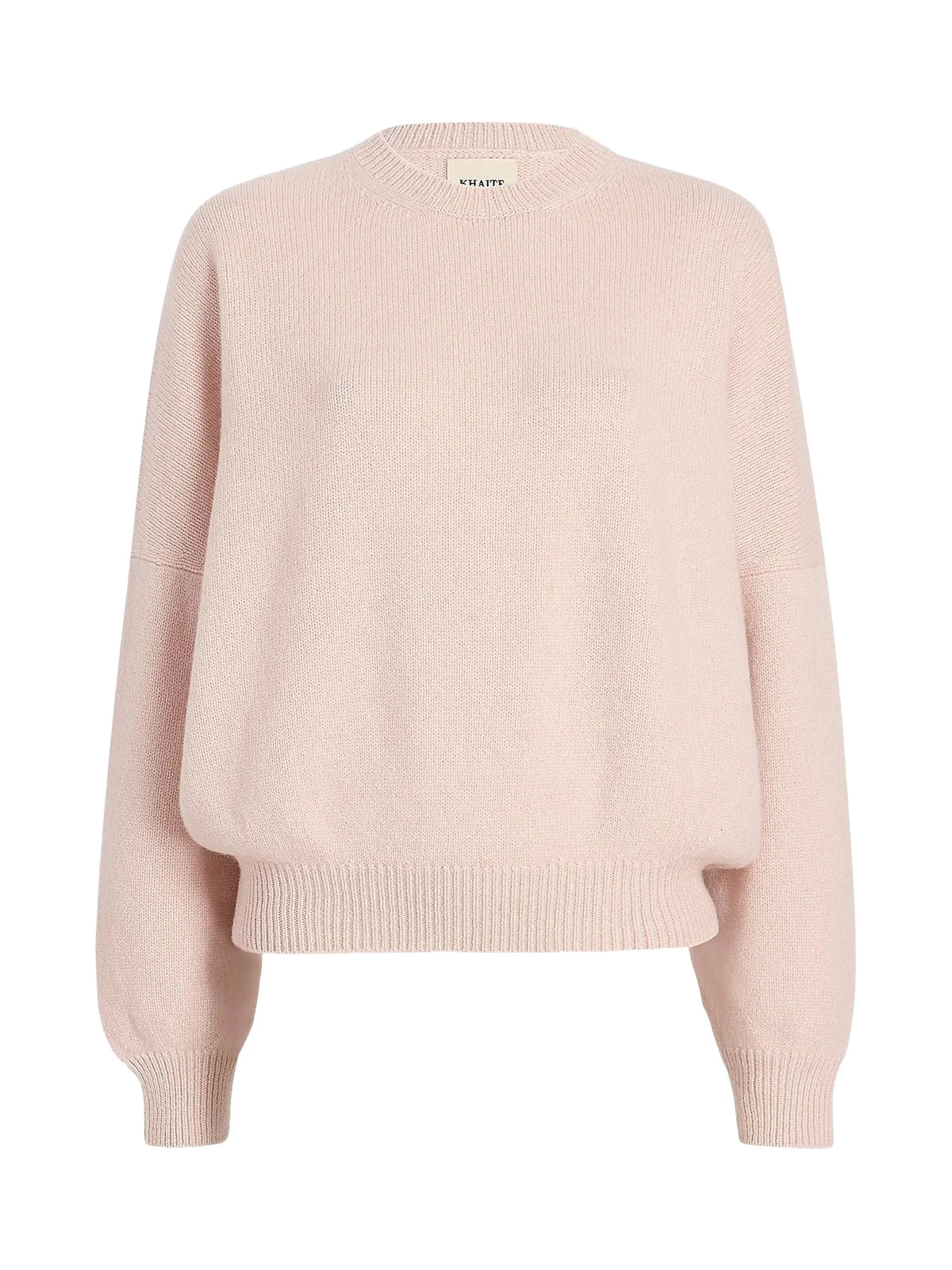
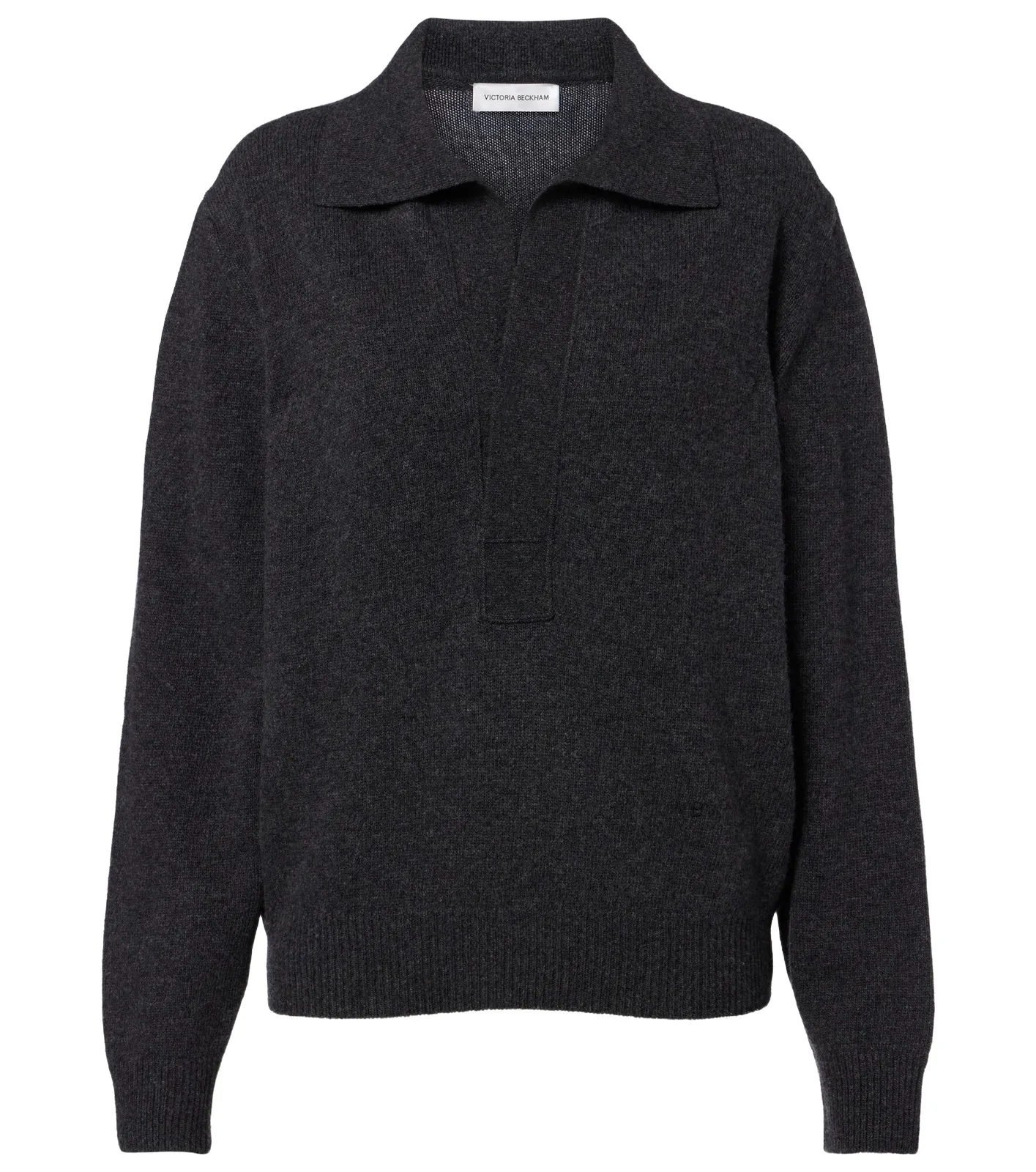
Knitwear is the first shelf we would film: a folded sweater keeps its shape, its colour reads cleanly, and it gives the stylist tops to build a week around. Our guide to telling good cashmere before you buy helps decide which knits earn the space; the shop's sweater edit has more.
Cashmere knits: the first shelf we'd film
Under the hood: how the closet pipeline works
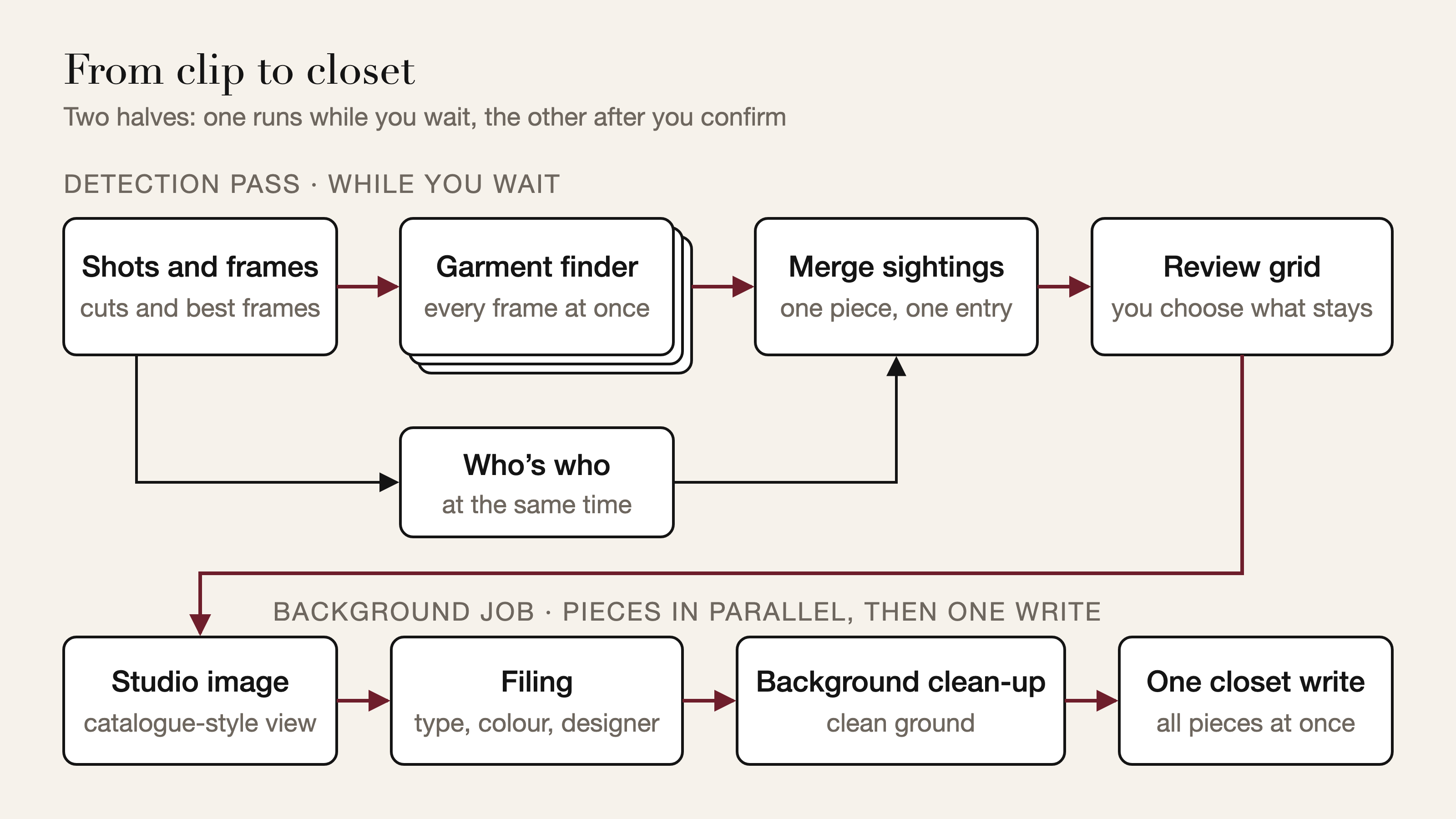
A closet needs something different from a shopping search: not the nearest designer match but an inventory, one entry per physical piece. A detection pass reads the clip while you wait and returns the grid; it never searches the shop, so the wait is one parallel read of the chosen frames plus a duplicate check. A background job then turns each piece you keep into a closet item, so slow work is spent only on what you chose. Both halves treat a missing garment as the costly mistake: ambiguous evidence keeps two entries, since a duplicate costs you one tap, and a piece whose processing stumbles is still added.
Shots, frames and a budget that grows with the clip
A fast first pass marks where the clip changes on two signals: a jump in the colour mix of the whole picture, for camera cuts, and a change in the middle of the frame against the clip's own baseline of motion, for a swipe between photos in a screen recording. Shot length is counted in time on screen, not frames: a screen recording adds frames only when the screen changes, so a photo left up for seconds can be a handful of frames that would otherwise pass for a flicker.
Frames come from the settled part of each shot, scored by how tall the person stands in the frame, with extra weight when the feet are in shot. A check for a human head guards that score, since a sweater laid flat can pass for a body; a clip with no head anywhere is read as product shots, ranked by sharpness. The budget goes coverage first, every shot before any shot's second frame, and grows with the clip's length; when frames must go, the pipeline avoids opening a gap a piece held up for a moment could slip through.
Whose clothes count
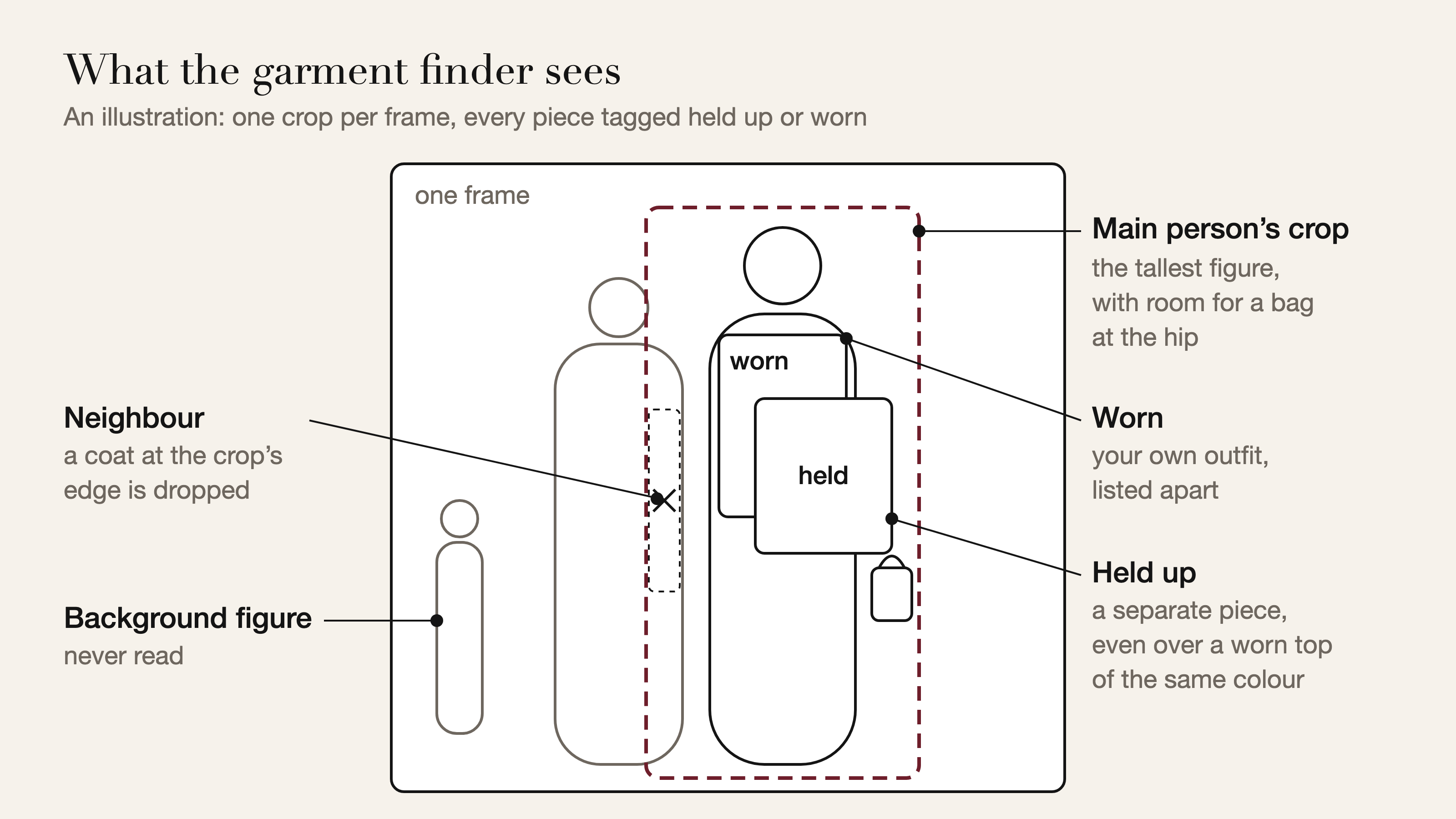
A frame with a person in it is cropped to the main person, the tallest figure, padded so a bag at the hip stays in, and the garment finder sees only that crop. A wide shot where that person stands small gets no person crop, since the crop could land on someone in the background. Inside the crop, a coat or trousers hugging a side edge is taken to be a neighbour's; bags, shoes, jewellery and anything held up are exempt, since they can sit off to the side.
The frames all go to the garment finder at once. Alongside that pass, not after it, a comparison of the same frames in time order marks where a new person or outfit takes over, or where a new product starts in a clip with no one in it. Sightings merge only within a group, so a friend's white tank cannot absorb yours. If the grouping fails, the clip is read as one person, or as one product per shot when no one is in it, which can split a product but never merge two.
Held up or worn
Every sighting carries one more label: held up to the camera, in a hand or on a hanger, or worn. The two never merge, so a grey sweater held against the grey tee you have on stays two pieces even when their boxes overlap.
The label flickers, so it is settled by consensus: a held sighting turns nearby sightings of the same garment into held ones, but never the outfit you wear through the clip, which is protected as yours. Two held sightings of the same kind and colour count as one only when close together, because a haul shows piece after piece: a red dress at the start and one at the end are two dresses. Even back to back, different sleeve lengths or a strong pattern, such as dots, on only one of them split them. Bags count as carried, never held, since a handbag on the arm flickers between the two.
One piece, one entry
Across frames one garment is named and coloured differently: a tee becomes a top, a coat a jacket, olive turns khaki in warmer light. So sightings are compared by garment family and colour family, not by word. A sweater seen over a shirt of another colour stays two. One person in one outfit wears one pair of shoes and one coat, so worn sightings of those merge even through a colour clash, which is the light, not a second pair of boots. Tops and bags are excluded: a second one is often real.
for each new sighting:
  for each piece already listed in its group:
    held up vs worn                  -> separate
    both held up, far apart in time  -> separate
    both held up, patterns or
      sleeve lengths differ          -> separate
    different garment family         -> separate,
      unless one garment read as two kinds,
      never seen in the same frame
    different colour family          -> separate,
      unless never in the same frame and
      either the shades are easily confused
      or the piece is worn once per outfit
    otherwise                        -> same piece:
      fold it in, keep the better view
  matched nothing                    -> a new piece
A merged entry keeps one view, in a fixed order: a box that caught the whole scene loses to a tight crop; a usable complete view beats a close-up cut off at the edges; a front view wins for pieces known by their front; then the more confident detection, then the larger crop.
A last pass compares the finished cut-outs, because two crops of one product can disagree on every label: one pump read as purple shoes, then as dark brown heels. Colour statistics cannot settle it, since two garments in one room share its light while one bag on white and against a dark rail looks like two, so a visual comparison groups the crops that show one physical product. Only pieces held up or shown on their own, and bags, take part; worn clothes never do, since two people can wear near-identical white tanks. A failed comparison collapses nothing, two products cut from one photo never merge, and only a partial view, such as a dress peeking in at a frame's edge, can fold into another product's entry.
From crop to closet item
Each confirmed crop then takes three steps. The studio step comes first for pieces from a video, a photo of several pieces or a retailer email: a piece shot on a body, a hanger or a duvet becomes a clean, catalogue-style image of the same piece, laid flat, in profile or upright to suit it, and if none can be made your own crop is kept. Filing then reads that image: category, sub-category, a colour from the closet's fixed palette, pattern, fit, sleeve, a name for the piece and the designer. Designers resolve against the shop's own list, exact name first, then with accents and punctuation folded so "Chloe" finds Chloé, never by part of a name, so a jacket from The Row is not filed under a label that merely contains the word; the list is cached rather than reread for every image. Clean-up then removes the background.
Failures degrade rather than drop: a piece whose filing stumbles still arrives, flagged for review, and one whose clean-up fails keeps its background on a permanent copy rather than the short-lived upload link. Only a piece with no usable image is left out.
A job you can walk away from
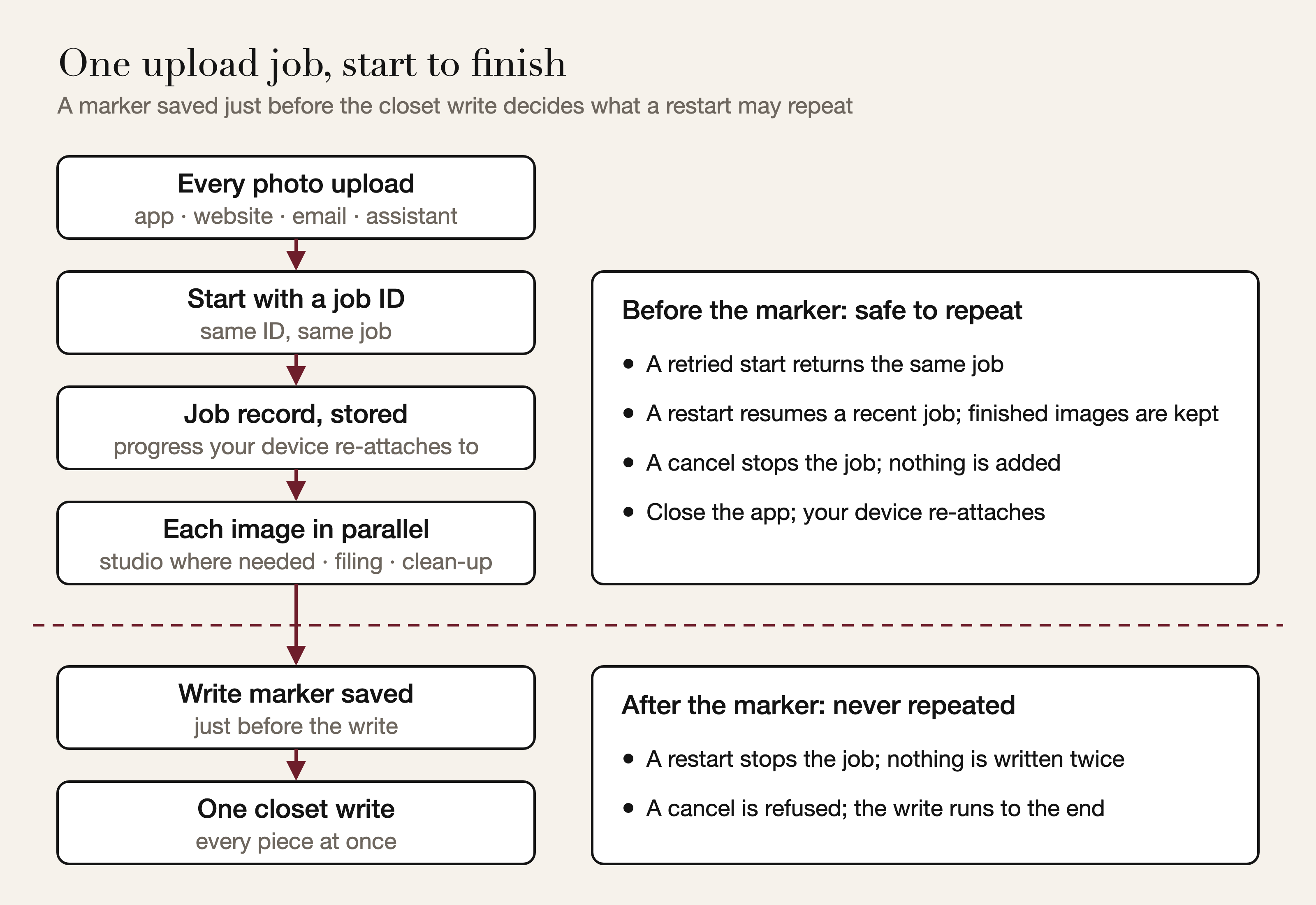
The job makes three promises: a retry never doubles your clothes, progress survives a closed app, and a cancel either stops the job before anything reaches your closet or, once the write has begun, lets it finish and says so.
- An idempotency key. Your phone or browser creates the job's ID before uploading anything and it becomes the job's key, so a start sent twice over a bad connection returns the same job. The record is created by an insert that fails on a duplicate key, not an upsert, so when two starts race, the loser returns the winner's job. An oversized batch is refused, not trimmed.
- Direct uploads. Photos and clips go straight from your device to storage over a short-lived signed link, scoped to one new file and a size cap, so a long upload never holds a connection open through our servers; uploading through our API is the fallback.
- Two worker pools. A job waits on its own images, so one shared pool could deadlock under a burst of uploads, every worker waiting on work queued behind it; separate, bounded pools make it a queue. Images run in parallel and each is released once stored, so memory never holds the whole batch.
- Forward-only progress. It lives on the job record, counts real steps weighted by their usual length, and is written only while the job runs, so a late update cannot overwrite a cancel.
- One write, behind a marker. Nothing touches your closet until every image is done; then one bulk write adds them all, with a marker saved just before it. On restart, a job without the marker cannot have written anything, so a recent one resumes, keeping the images it finished; one with the marker may have, so it is stopped rather than risk adding pieces twice. The write itself is retried only when the connection was refused, the one failure that proves it never arrived.
- Cancel and re-attach. A cancel is checked between steps, saved on the job and refused once the write begins. Your device remembers running jobs and re-attaches after a reload, in a new tab or when the app returns to the foreground, since phones pause background timers.
One pipeline behind every upload
Every way of adding your own photos ends in this job. Gallery Upload and Camera Capture send photos as they are; Multi-Item Upload sends the crops you confirmed; Email Import sends the receipt images you kept, which get the studio step too, since retailer emails carry thumbnails and styled shots. An assistant connected through MCP starts the same job, gets its ID back as an import ID and can check on it while you chat, and the pieces it adds from photos are marked private.
The detection pass is a job too, its state in a shared store so any worker can answer your poll. Each worker runs a bounded number of clips at once and queues the rest, so a burst waits its turn instead of slowing every clip; a comparison slow to answer is sent again as an identical second request, and the first good answer wins.
Other ways to add clothes to your closet
- One piece, one photo. Gallery Upload on the website and Camera Capture in the app add one piece per photo, and you can choose a batch of photos at once. Each goes through the same filing and clean-up.
- Email Import. If you use Gmail, Vêtir finds order confirmations from fashion retailers in your inbox, forwarded receipts included, and pulls out the pieces you bought. It asks for read-only access, and you can crop or delete what it found before anything is added.
- From an AI assistant. Vêtir connects to ChatGPT, Claude and other assistants through the Model Context Protocol, an open standard for linking AI apps to outside services. Once connected and signed in, the assistant can add pieces from photo links, search your closet and show your Outfit of the Day; our setup guide covers each app. Meta's Muse is newly supported as well: you add Vêtir there as a custom connector, and the guide has the steps.
- Have it done for you. Our concierge team offers White Glove Closet Digitization, in your home or remotely; our guide to the digital closet covers the done-for-you route in more depth.
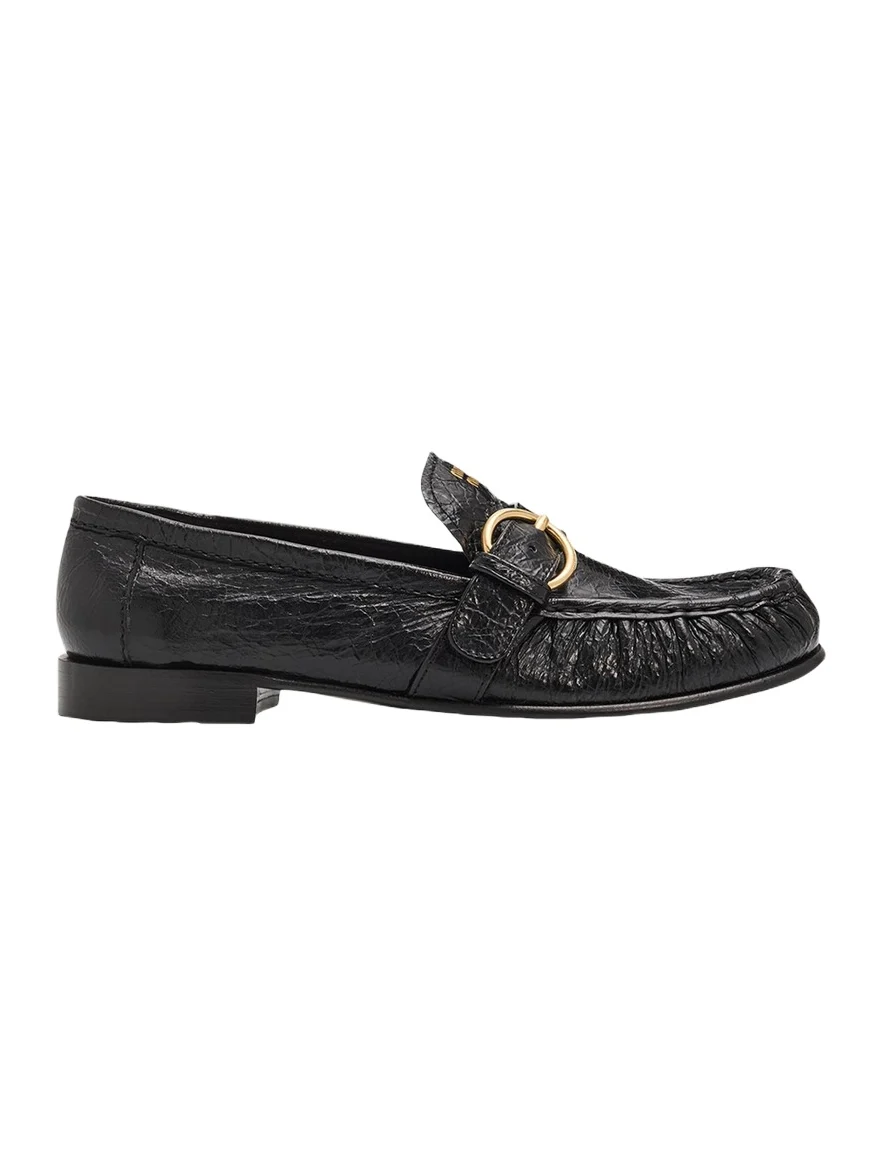
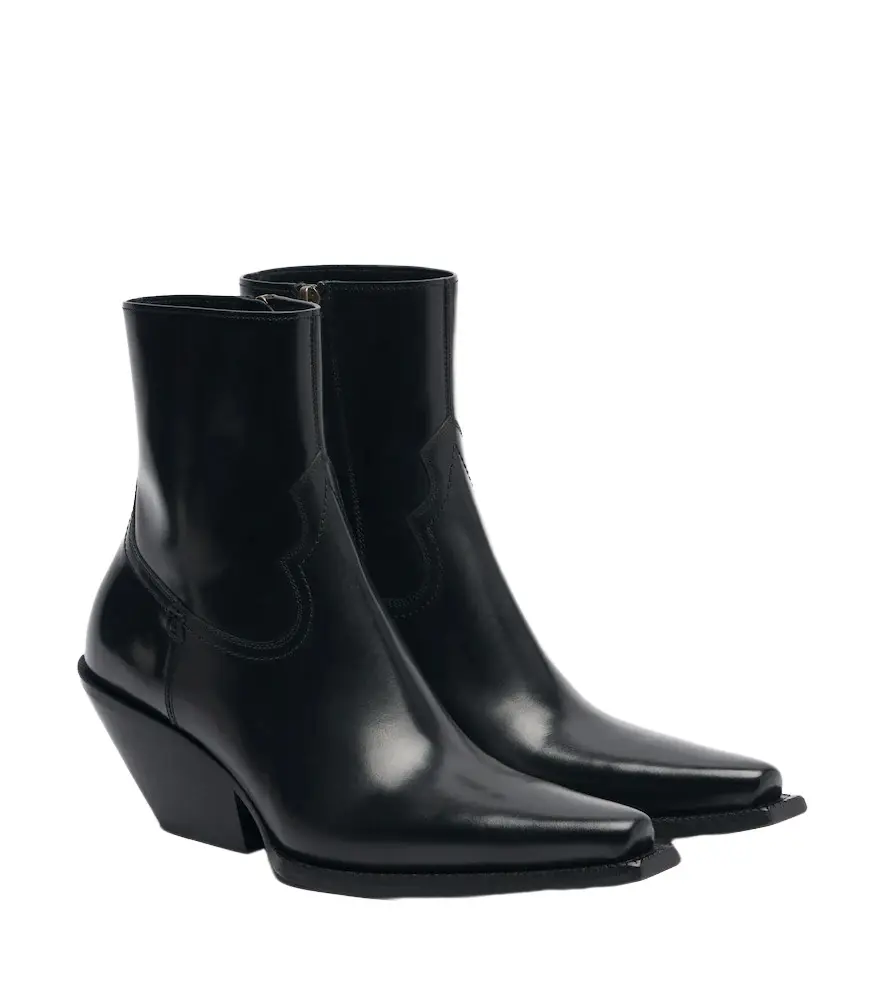
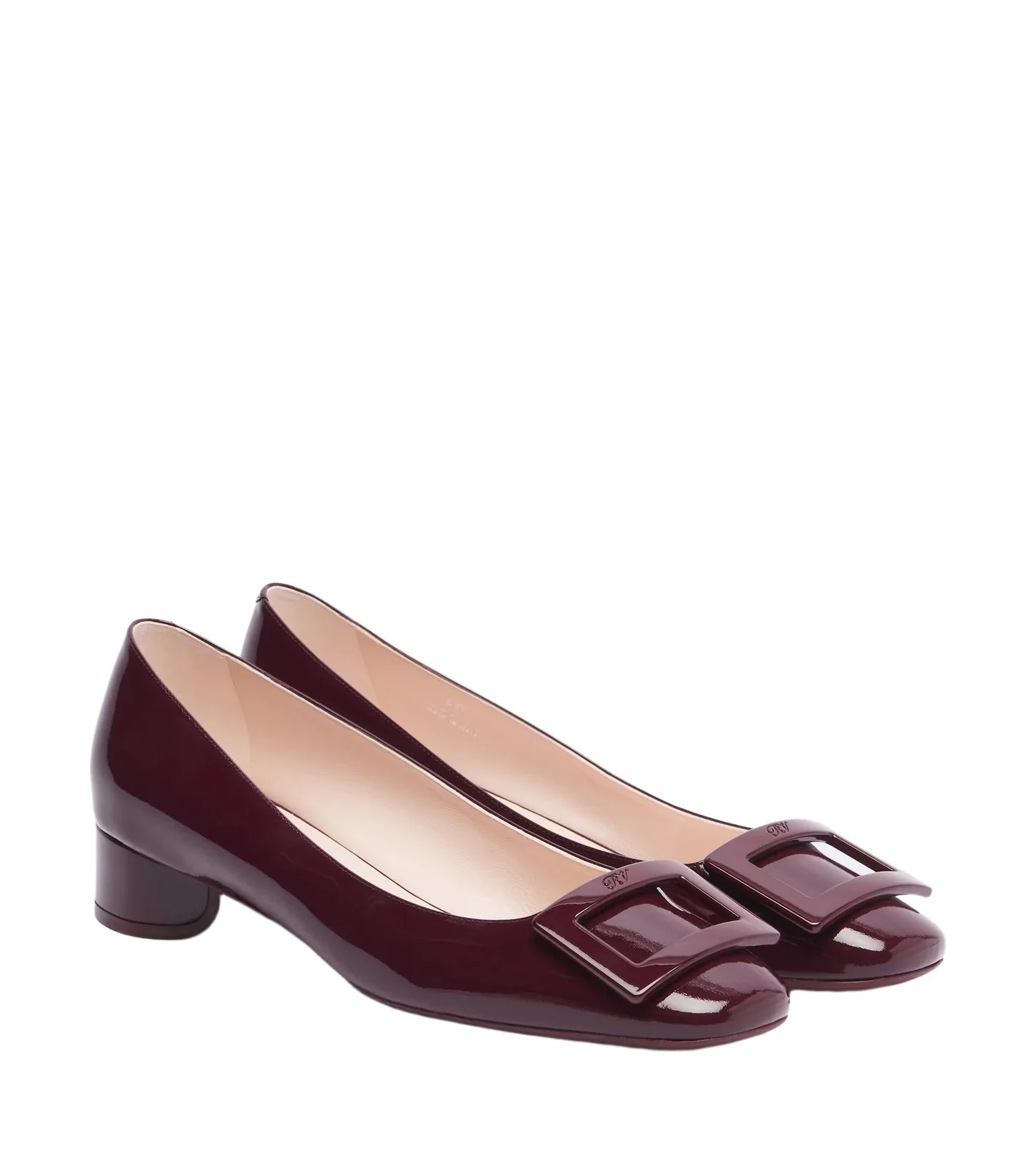
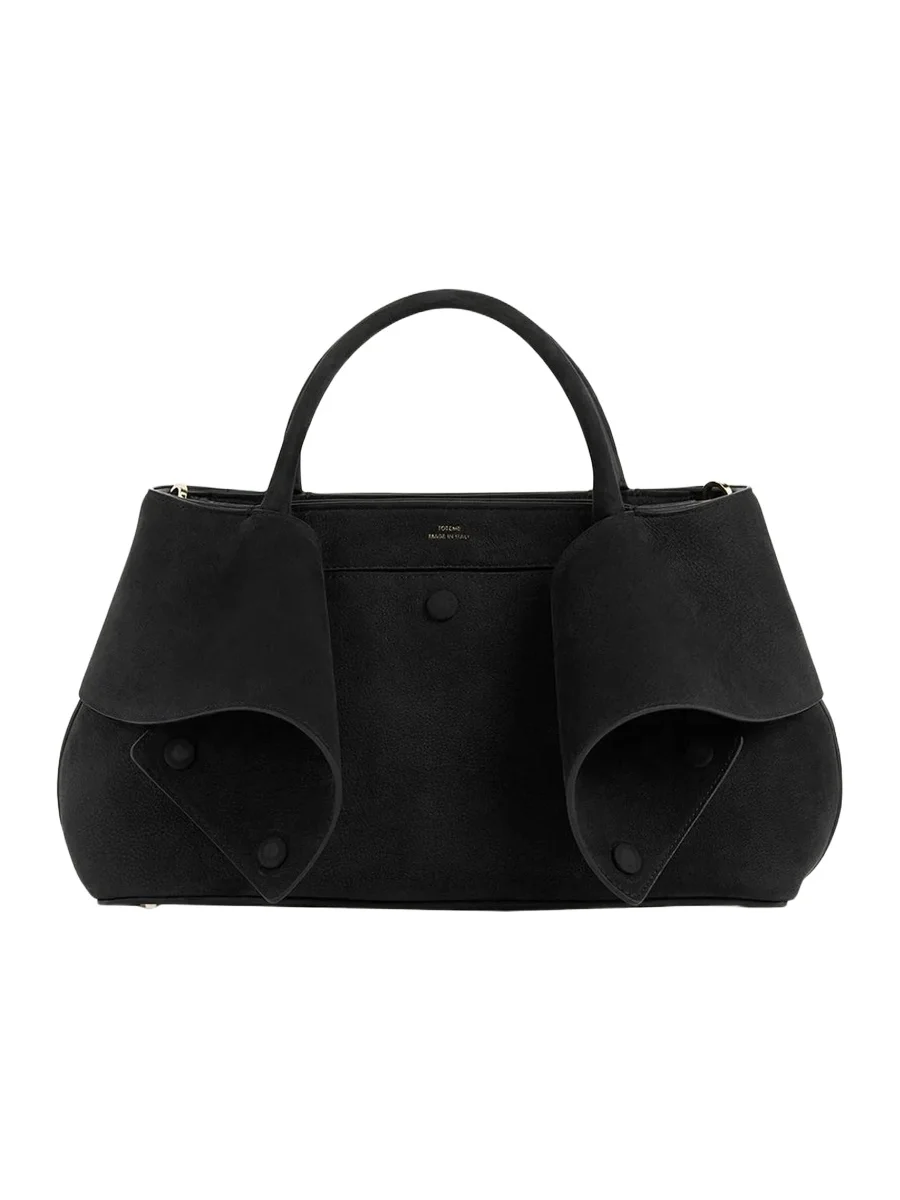
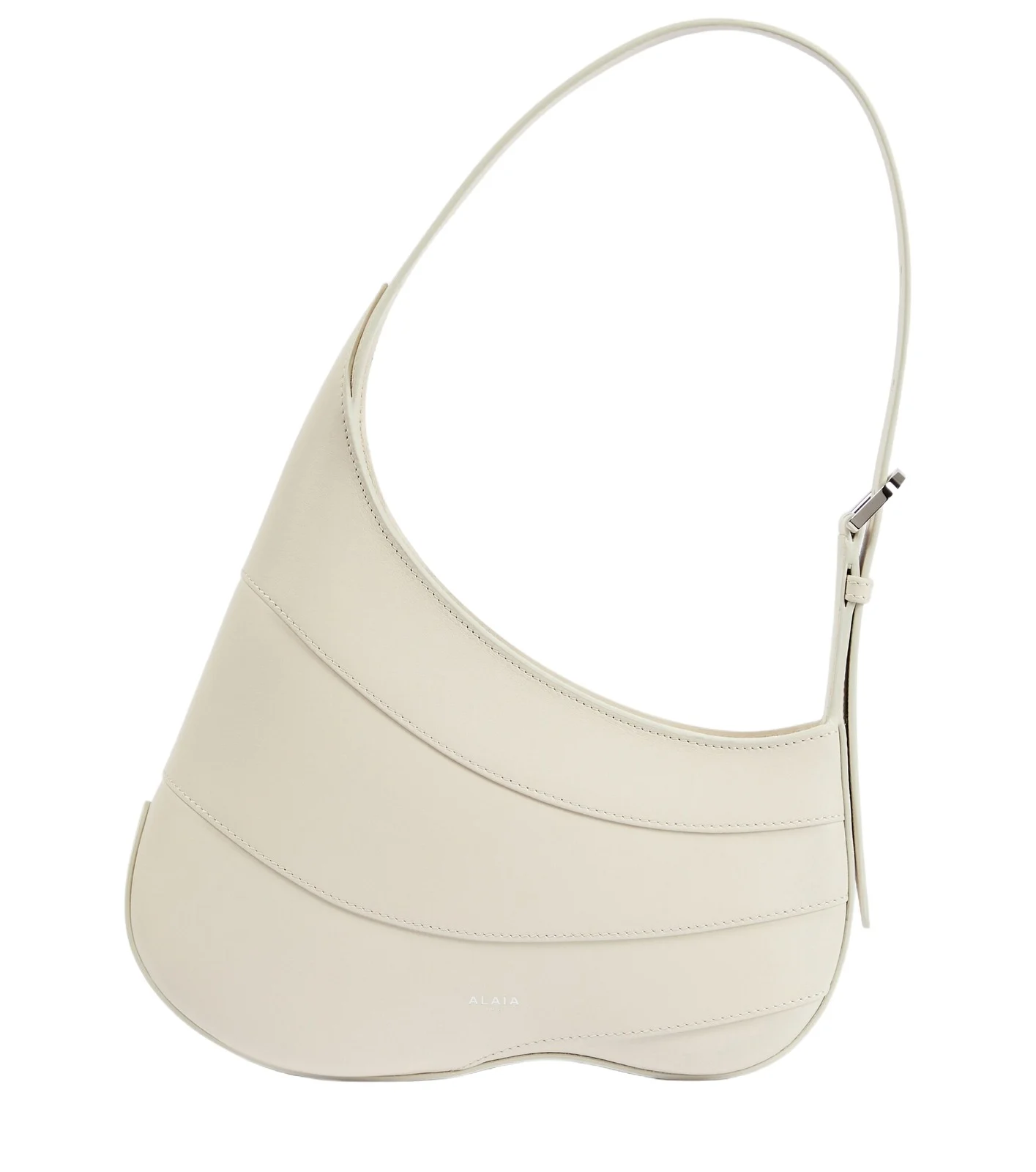
Shoes and bags are where single photos earn their keep: loafers shot from the side, or a bag standing on a table, give the filing step a clean silhouette and a readable colour.
Shoes and bags: photograph these one at a time
What to do once your closet is in
When WRAP, the UK waste charity, asked people about their clothes, it found the average person in the UK owned 118 items and that just over a quarter had not been used in the past year. A closet inventory is the start; these tools put it to work, including one for the pieces you no longer reach for.
- The AI stylist. The Vêtir AI stylist builds complete outfits from the clothes you own first, marks your pieces as yours, and suggests something new from a catalogue of hundreds of thousands of designer pieces only where a look needs it. Ask the AI stylist to "help me style an outfit from my closet", to scan your closet for missing staples, or something as specific as a request people have typed into it: "Style an outfit for a birthday dinner using only items in my closet."
- Outfit of the Day. On your home screen, Vêtir puts together a daily look from your own closet, one from new arrivals and a mix of the two, when they are ready.
- Your own outfits. Arrange closet pieces on the outfit canvas to build outfits and mood boards, and sort pieces into named lists by season, occasion or trip.
- Sell what you no longer wear. In the app and on the website, Vêtir Preloved turns a closet piece into a pre-owned listing, starting from the details your closet already holds, with an optional authenticity check on its photos and a suggested price based on recent resale prices.
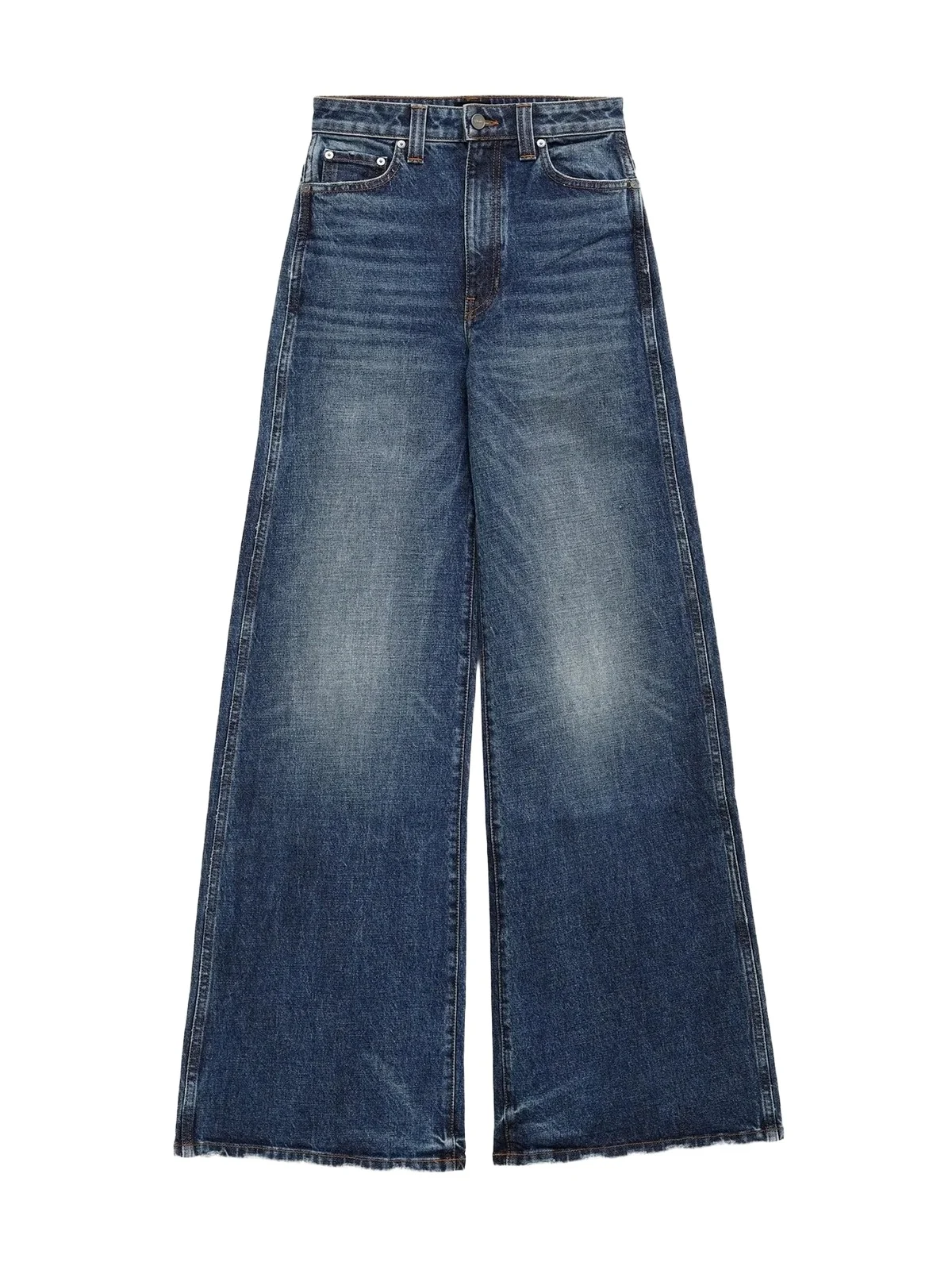
Jeans are the second shelf to film: nearly every knit above works with them, so two or three rinses multiply what the stylist can build. These pairs run from straight and wide to barrel and bootcut; our guide to choosing designer jeans covers rise, leg and denim weight, and the shop's jeans edit has more.
Jeans to add second: they work with every knit above
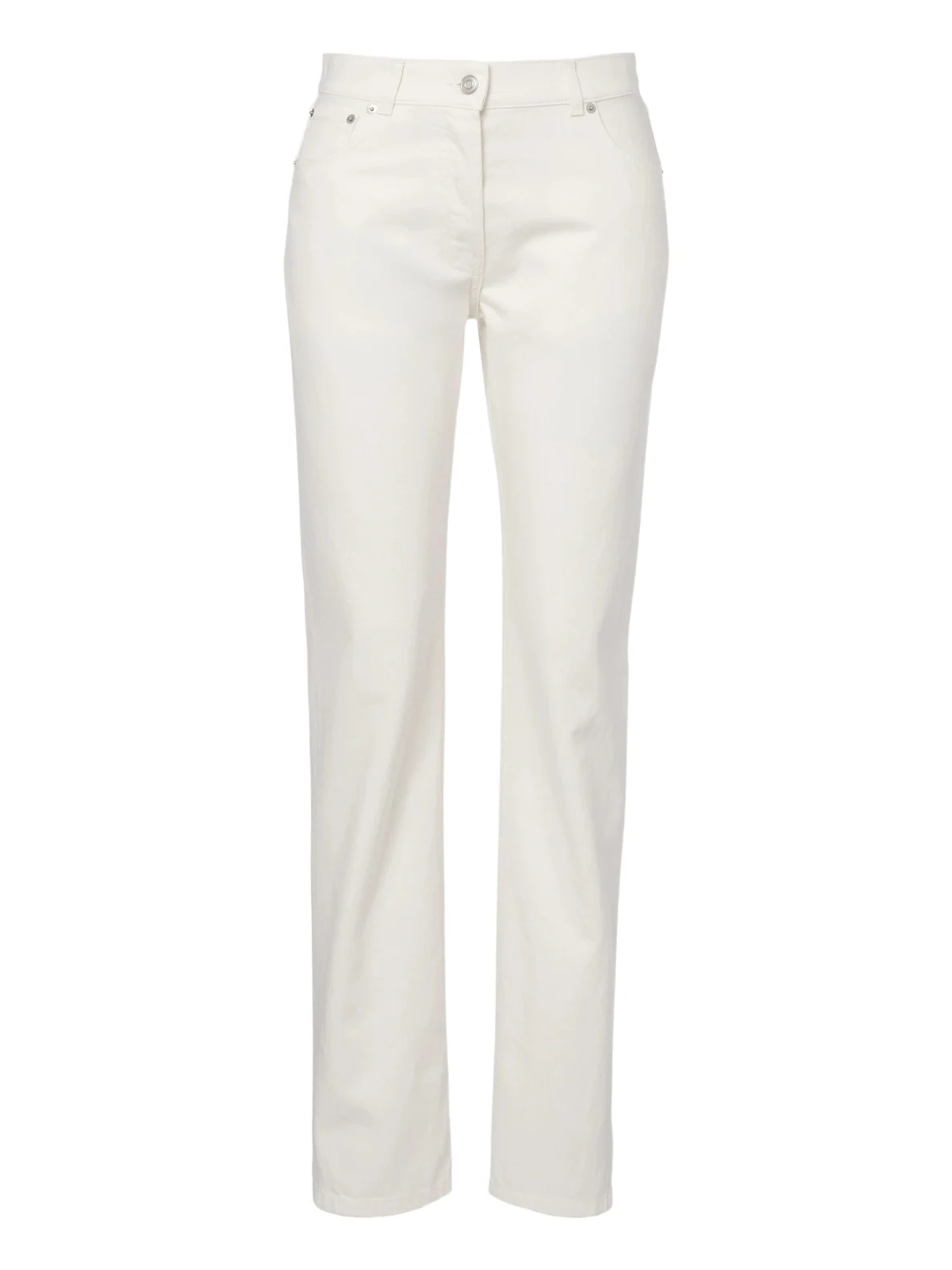
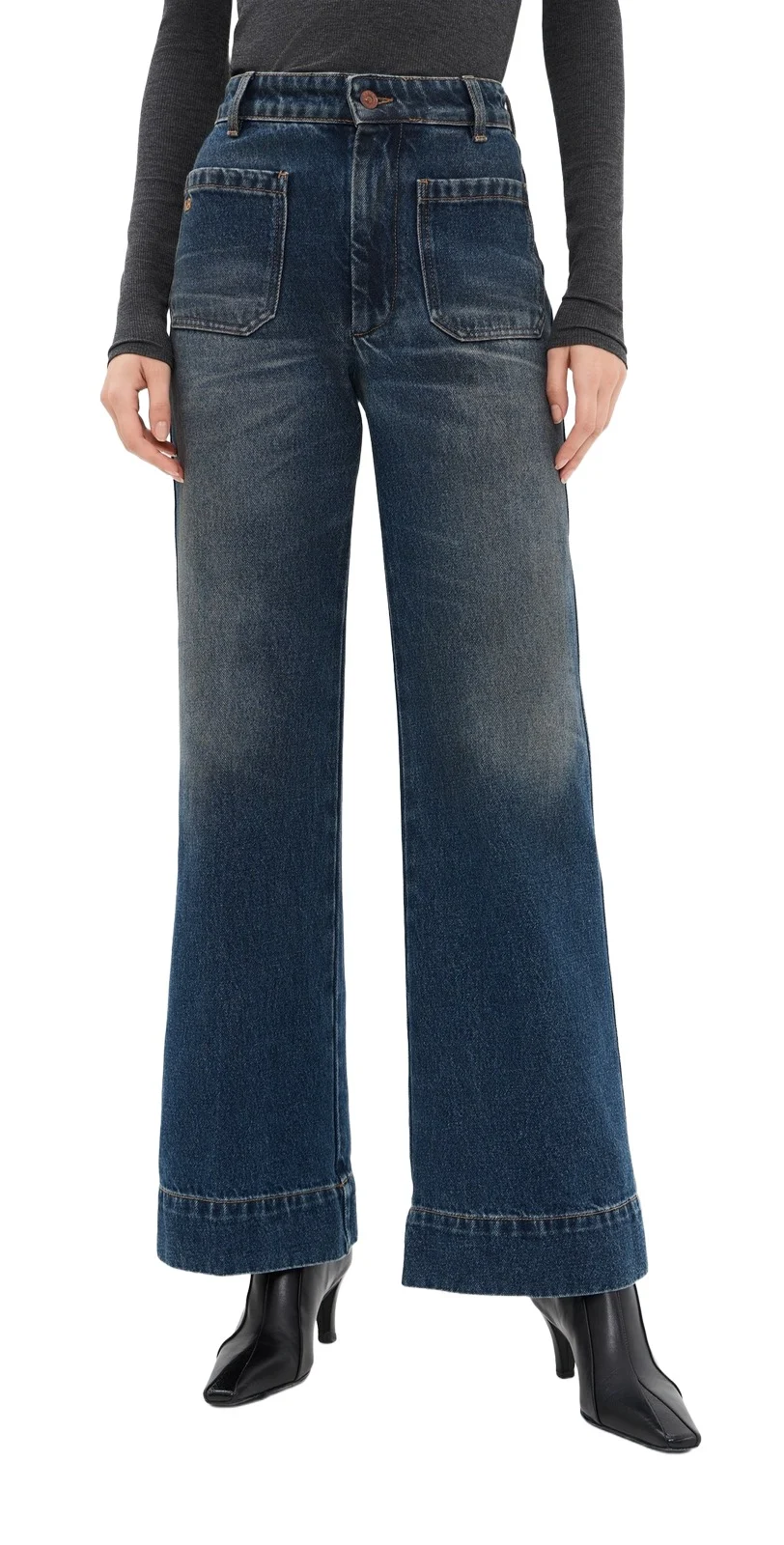
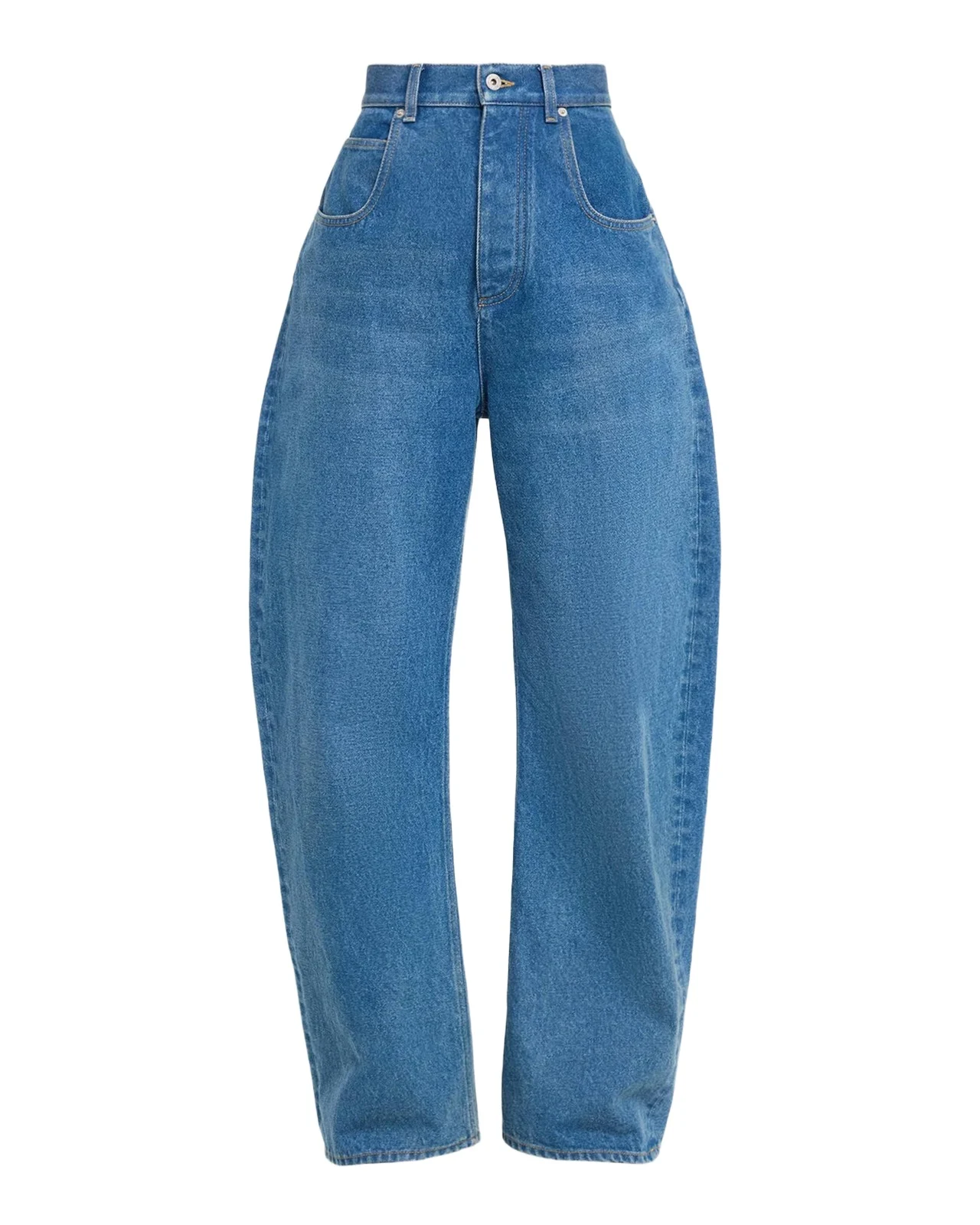
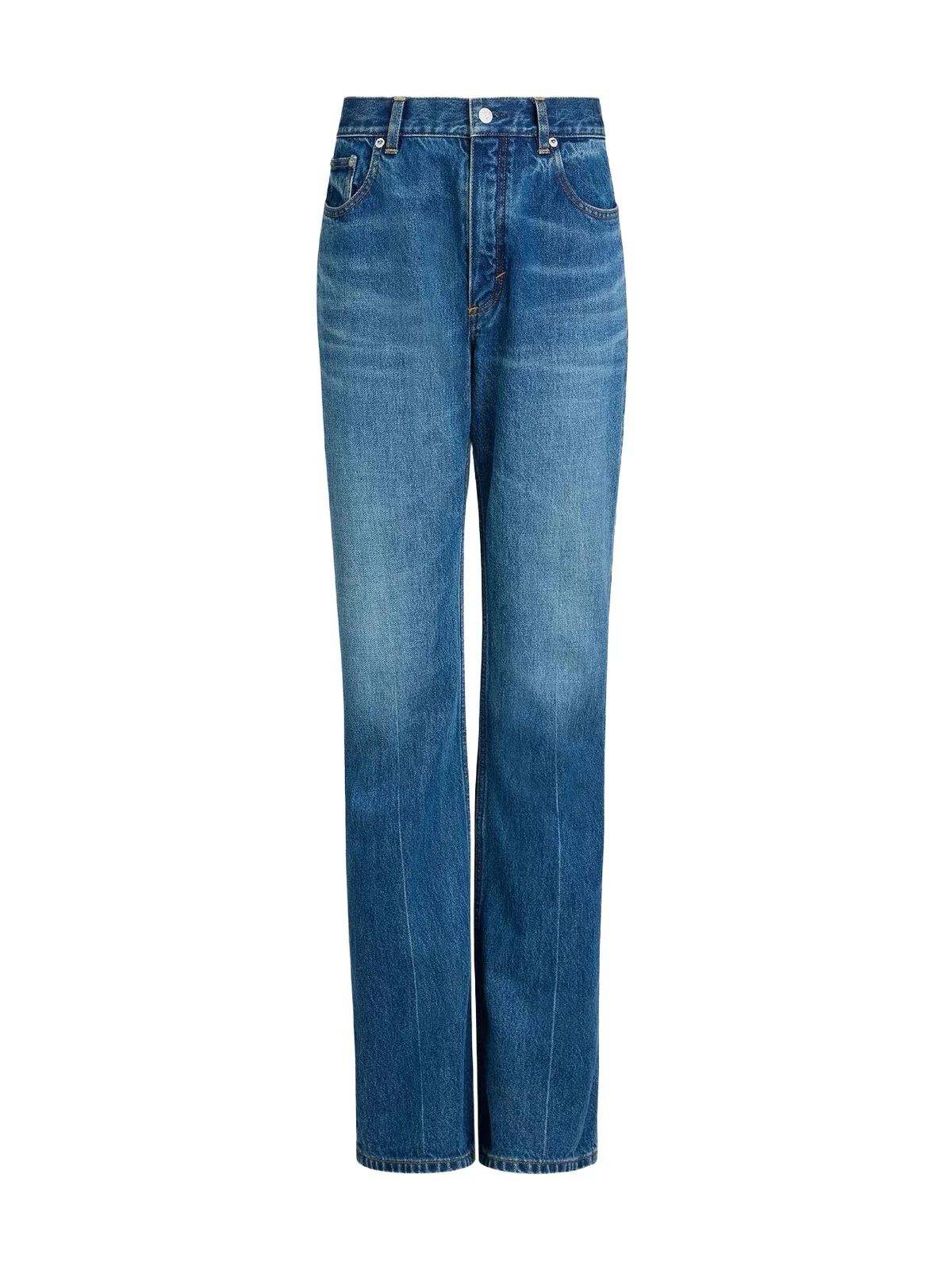
How we chose these pieces
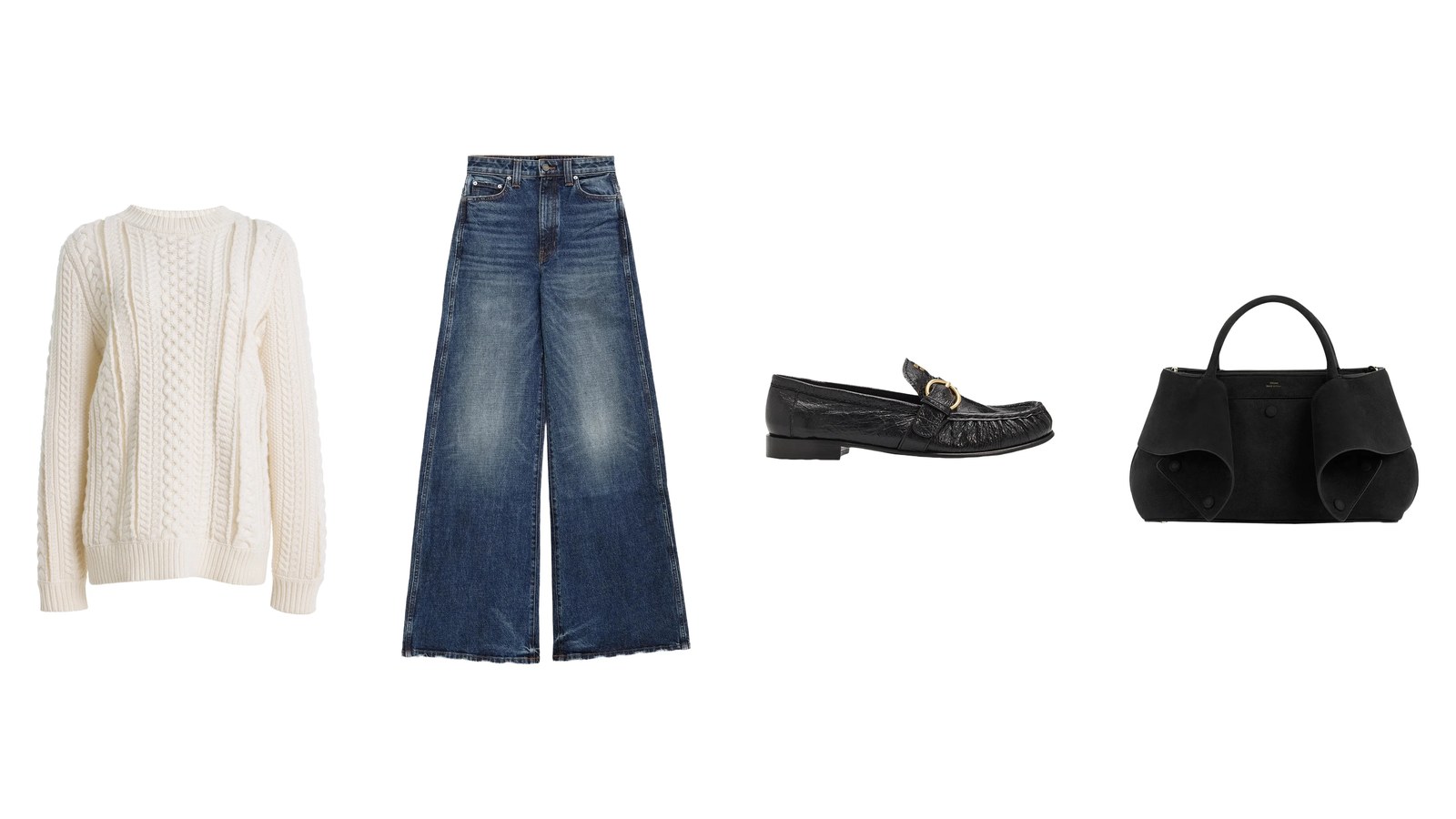
We picked staples that film and photograph cleanly: knits with a defined neckline or a clear cable, jeans in solid rinses, and leather shoes and bags with a strong outline. The palette stays in black, ivory, grey, taupe, blush, burgundy and denim, colours our stylists pair freely with one another. All sixteen come from twelve houses, including The Row, Khaite and Max Mara, at full price and in stock when we chose them.
What's next
We're building closet video uploads into the AI assistants you connect to Vêtir, so you will be able to hand ChatGPT or Claude a clip and get the same separate pieces back. Those uploads will run as background jobs on the same pipeline described above; our roadmap piece has the detail.
Frequently asked questions
How do I digitize my closet quickly?
Film it in short clips, one category at a time, and upload each with Multi-Item Upload in the app or on vetirapp.com. Confirm the pieces it finds; the rest runs in the background.
Can I add clothes to my closet from a video, and how long can it be?
Yes. Multi-Item Upload takes a video of up to two minutes; on the website the file can be up to 200 MB. Each piece you confirm becomes a separate closet item.
Will a try-on video add the clothes I'm wearing too?
It lists them, separately from the pieces you hold up, and you choose. Untick your outfit in the grid if you don't want it in your closet.
What if the same piece appears more than once in my video?
Repeat sightings of one piece become one entry with its clearest view. Two look-alikes held up back to back can be read as one, so show them far apart or in separate uploads, and untick any duplicate that slips through before you confirm.
Do I have to keep the app open while it uploads?
No. Once your photos have uploaded, the job runs on our side with its progress saved, so you can close the app and the card picks up again when you return.
Can I sell a piece once it is in my digital closet?
Yes, in the Vêtir app or on vetirapp.com. Open the piece in your closet and choose Sell on Marketplace to start a Vêtir Preloved listing with a suggested price; authentication is optional.
Keep reading
- How Vêtir finds the pieces in a video and matches them to the shop
- How the Vêtir AI stylist builds a look
- The rise of the digital closet
- The best cashmere sweaters, and how to tell good cashmere
- The best designer jeans, by rise, leg and denim
Written by Ashish Gupta, CTO of Vêtir.